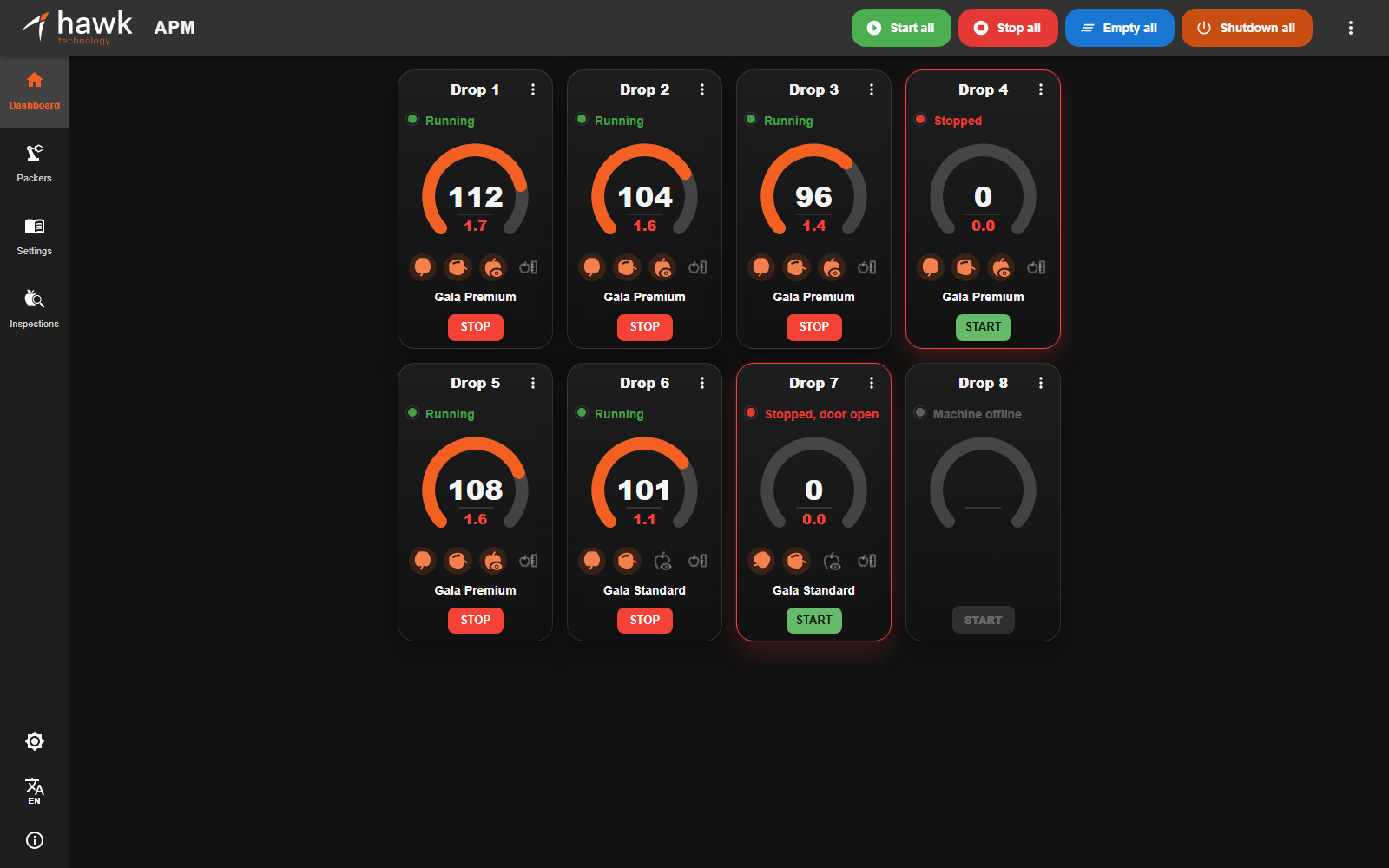
Figure 1 — APM Dashboard
The Dashboard is the live operational view of all RAPs in the packhouse. It allocates one tile for each lane/drop configured on the server.
¶ Dashboard Toolbar
The header bar contains global controls that apply to all RAPs on the server.

Figure 2 — Dashboard toolbar
- Start all (green): Starts every configured RAP. RAPs that cannot be started (e.g. door open) remain stopped and continue to report their status.
- Stop all (red): Stops every running RAP. Fruit currently in transit is allowed to clear naturally.
- Empty all (blue): Empties fruit from every RAP. Typically used before shutdown or maintenance.
- Shutdown all (orange): Shuts down every RAP. Use only at the end of a shift or when instructed by a supervisor.
- Display options (⋮): Sets how many tile columns the Dashboard shows, and how wide it is. The choice is remembered in this browser.
Safety note: These buttons affect every RAP on the server. If you only need to control a single RAP, use the controls on the corresponding Dashboard tile.
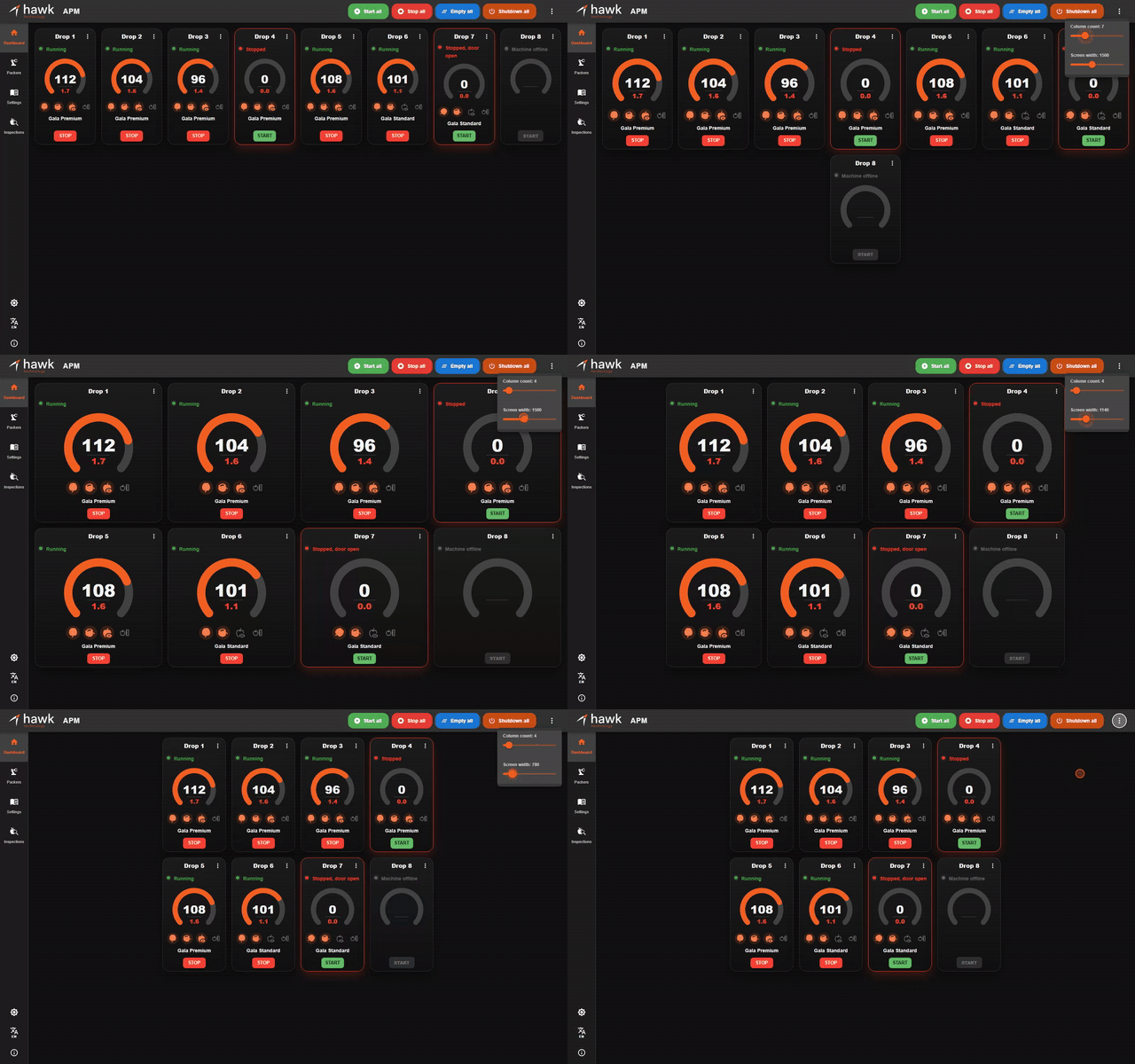
Figure 3 — Changing the column count
¶ Reading a lane tile
The lane tile provides a summary of an individual RAP's status and allows operators to perform common actions, such as starting or stopping the RAP.
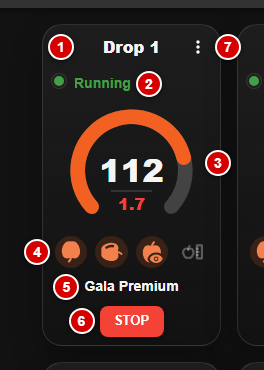
Figure 4 — A lane tile
- Lane/Drop name: The name of the RAP (e.g. Drop 1).
- Status indicator: The current operating status. Possible values include:
- Running
- Running, faulted
- Starting
- Starting, faulted
- Running and warning
- Emptying
- Stopped
- Stopped, faulted
- Stopped, door open (the safety door is open — the RAP cannot be started until the door is closed)
- Machine offline
- Speed gauge: The large number is the fruit throughput per minute. The red number underneath is the rejects per minute.
- Settings icons: The stem angle, Colour Up and End Inspect settings the RAP is running. The apple turns to show the stem angle; an icon is orange when the setting is on and grey when it is off.
- Group: The outlet group the RAP belongs to. See Settings Page.
- START / STOP: Starts or stops this RAP.
- Three-dot (⋮) menu: Empty the RAP, view its faults, or open the camera view.
A red tile highlight means the RAP is not ready to receive fruit, e.g. it is stopped, faulted or its door is open.
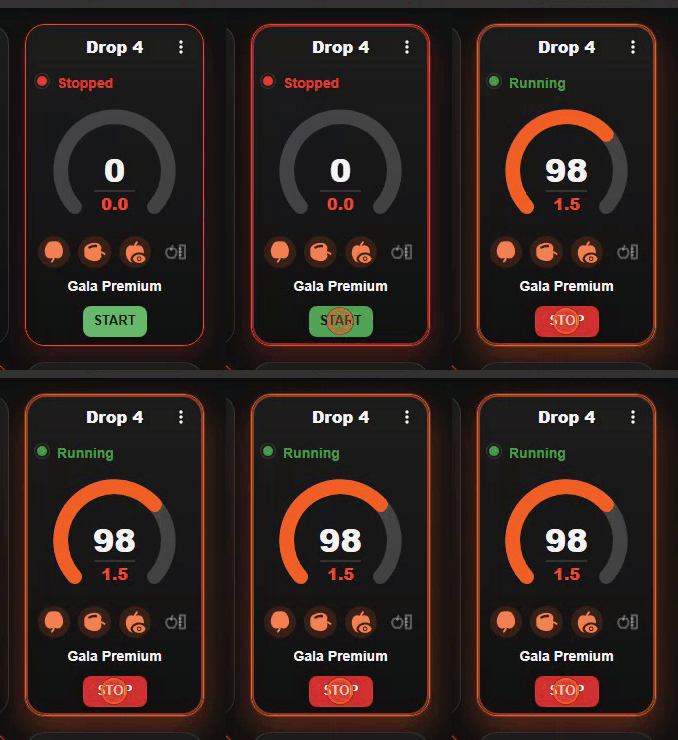
Figure 5 — Starting a RAP from its tile
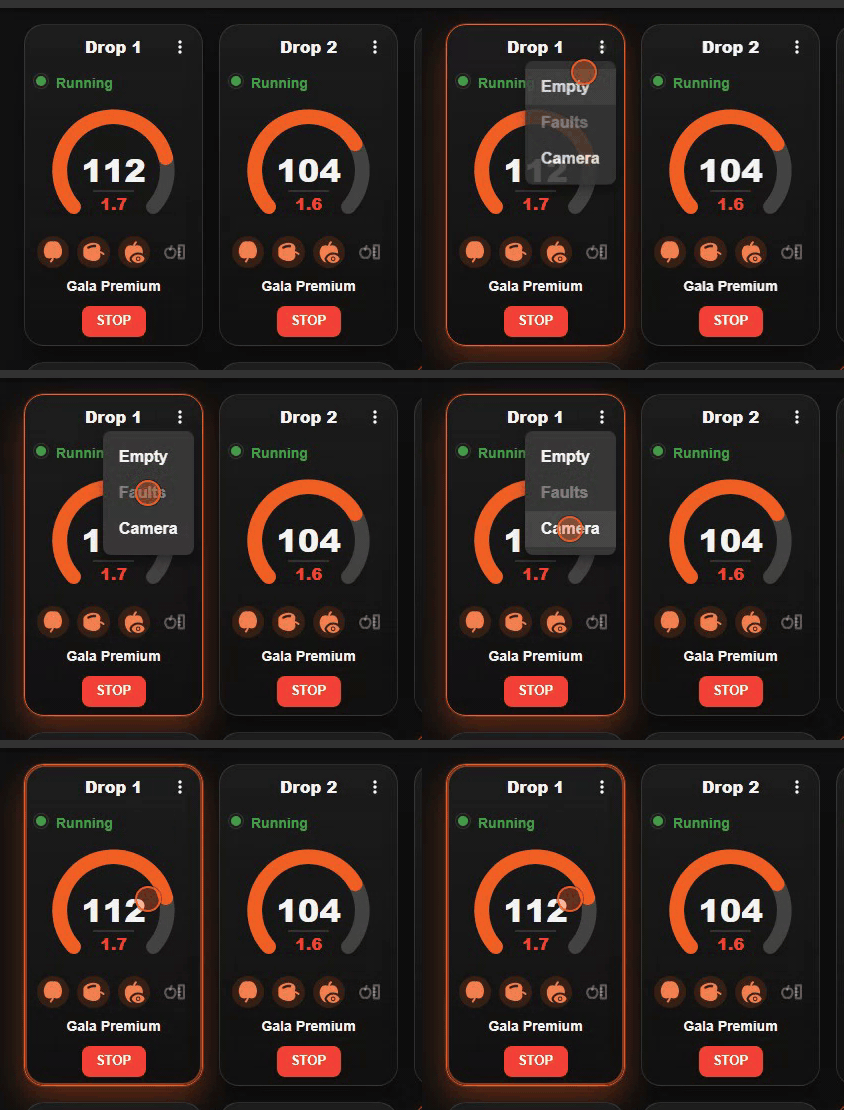
Figure 6 — The tile's three-dot menu