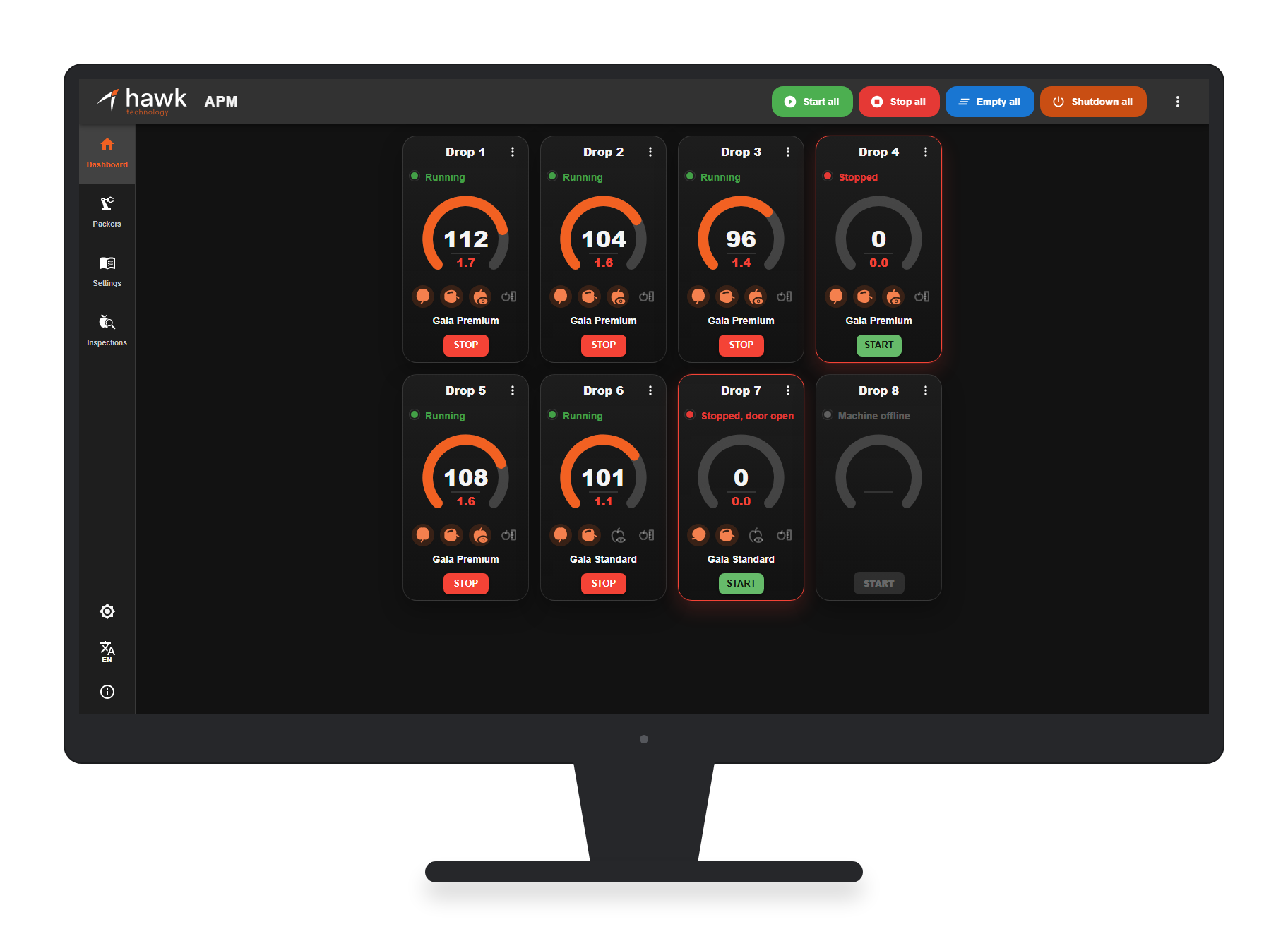
The Apple Packer Manager (APM) is a web application used to monitor and configure Robotic Apple Packers (RAPs), set their inspection and reject settings, and review historical inspections of apples across a packhouse.
¶ Introduction
This section is intended for operators on the production floor. Users are expected to have access to the dashboard URL and a modern web browser.
¶ Who should read this
This section is intended for:
- Line operators responsible for starting, stopping, and supervising packer lanes.
- Quality control staff responsible for reviewing inspection results.
- Supervisors responsible for managing settings across machines.
¶ Key concepts
| Term | Meaning |
|---|---|
| Outlet (lane / drop) | A sizer outlet with a Robotic Apple Packer (RAP) on it. Depending on the packhouse, outlets are called lanes (e.g. Lane 2) or drops (e.g. Drop 11). Each RAP operates independently. |
| Outlet group | A named set of outlets that share one set of settings. A packhouse can have up to three groups, and every outlet is in exactly one group. |
| Group settings | End Inspect, Colour Up, Stem Angle and the defect reject thresholds. They apply to every RAP in the group. |
| Template | A saved set of group settings, e.g. Gala Premium, that can be loaded into any group. |
| Inspection capture | A record of a single fruit processed by the RAP. |
¶ Signing in and out
At packhouses where sign-in is switched on, operators sign in to the APM with their own account to start, stop and empty RAPs and to open the Packers, Settings and Inspections pages. Without signing in, the home page only shows the RAPs. At a packhouse without sign-in, skip this section.
¶ Signing in
- Select Sign in at the top right of the home page header.
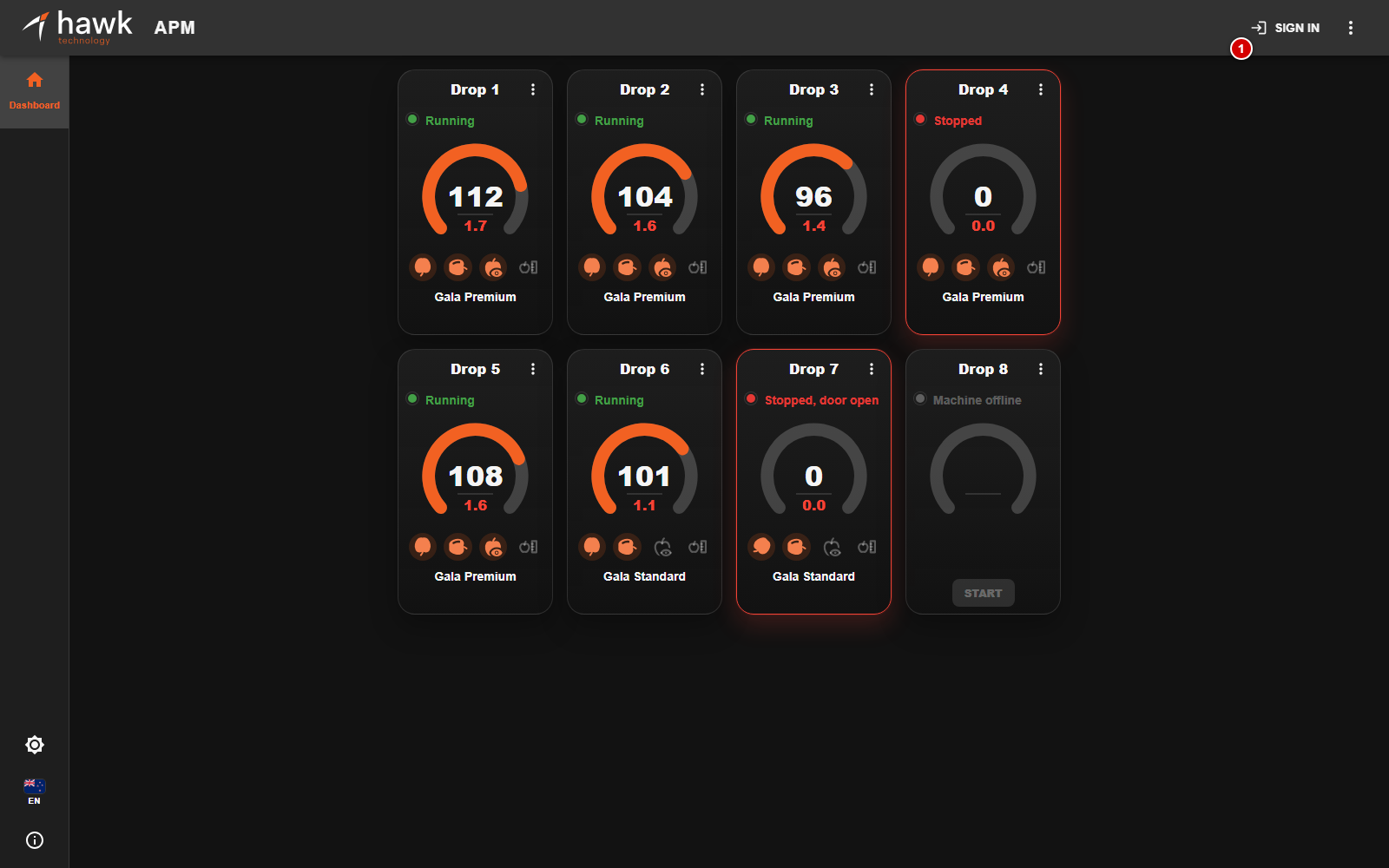
Figure — The home page, with Sign in in the header
- On the sign-in page, sign in with the account your user admin gave you.
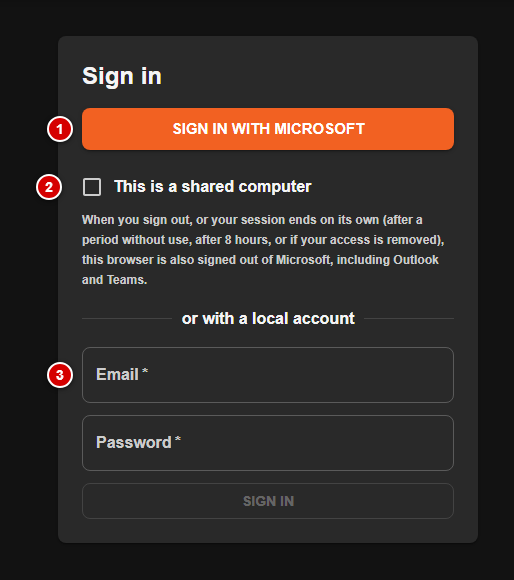
Figure — The sign-in page
- Sign in with Microsoft: For a Microsoft work account. A Microsoft window opens; sign in there as usual.
- This is a shared computer: Tick this on a computer that several people use, such as the one on the packing line, before you sign in with Microsoft.
- Local account: For an email address and password. Enter them and select Sign in.
After signing in you land on the Dashboard. If you opened another page first, for example from a bookmark, the APM takes you back to that page instead.
If the APM is not used for 1 hour, you are signed out. Two minutes before, it asks Still there?; select Stay signed in to carry on. Every session also ends 8 hours after signing in; sign in again to carry on.
¶ Signing out
Open the More actions menu (⋮) at the top right of the header and select Sign out. The menu also shows who is signed in on this computer.
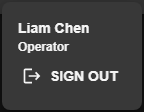
Figure — The More actions menu of a signed-in operator
Signing out ends your session on this computer only; other computers or tablets you signed in on stay signed in. On a shared computer, always sign out when you finish, so the next person does not use the APM as you.
¶ Application Layout
The dashboard has three persistent areas visible on every page:
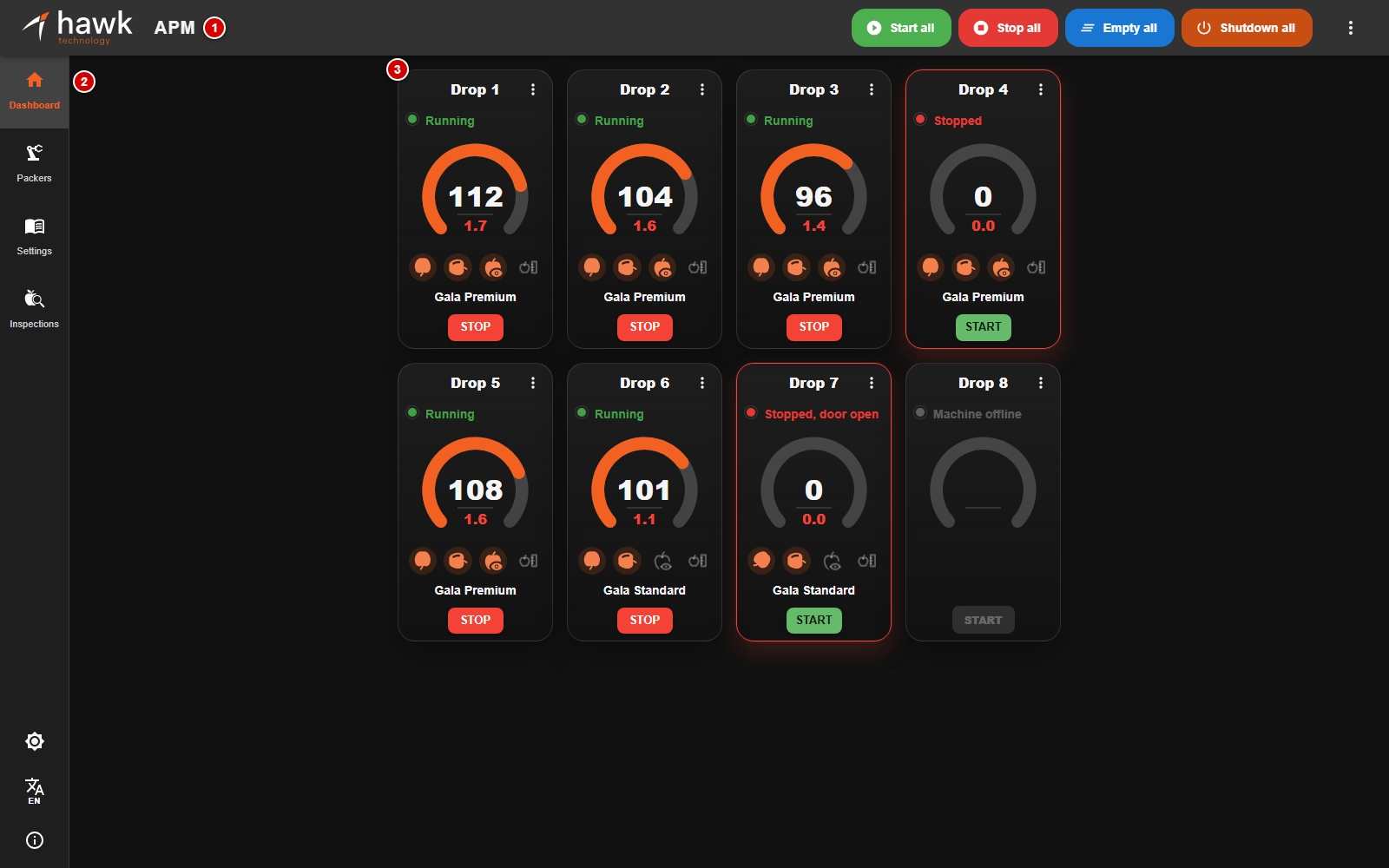
Figure — Application layout
- Top header: Contains page-specific actions relevant to the selected page.
- Left navigation drawer: Provides access to the main application pages: Dashboard, Packers, Settings, and Inspections.
- Main content area: Displays the currently selected page and its associated controls and information.
¶ Dashboard Page
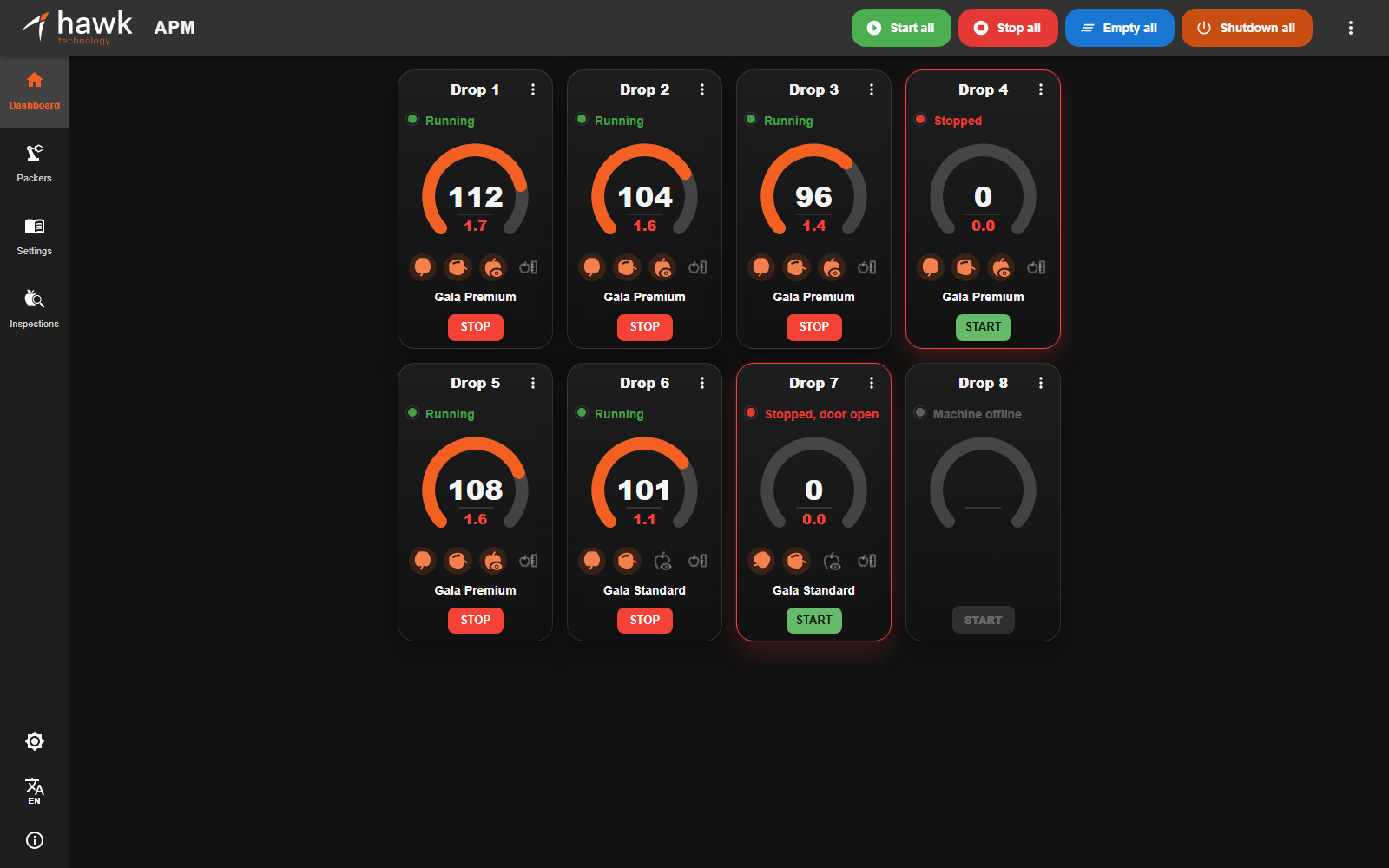
The Dashboard is the live operational view of all RAPs in the packhouse, with one tile for each lane/drop. It is used to start, stop and empty RAPs, individually or all at once.
¶ Packers Page
The Packers page lists all RAPs registered to the server and displays the following information.
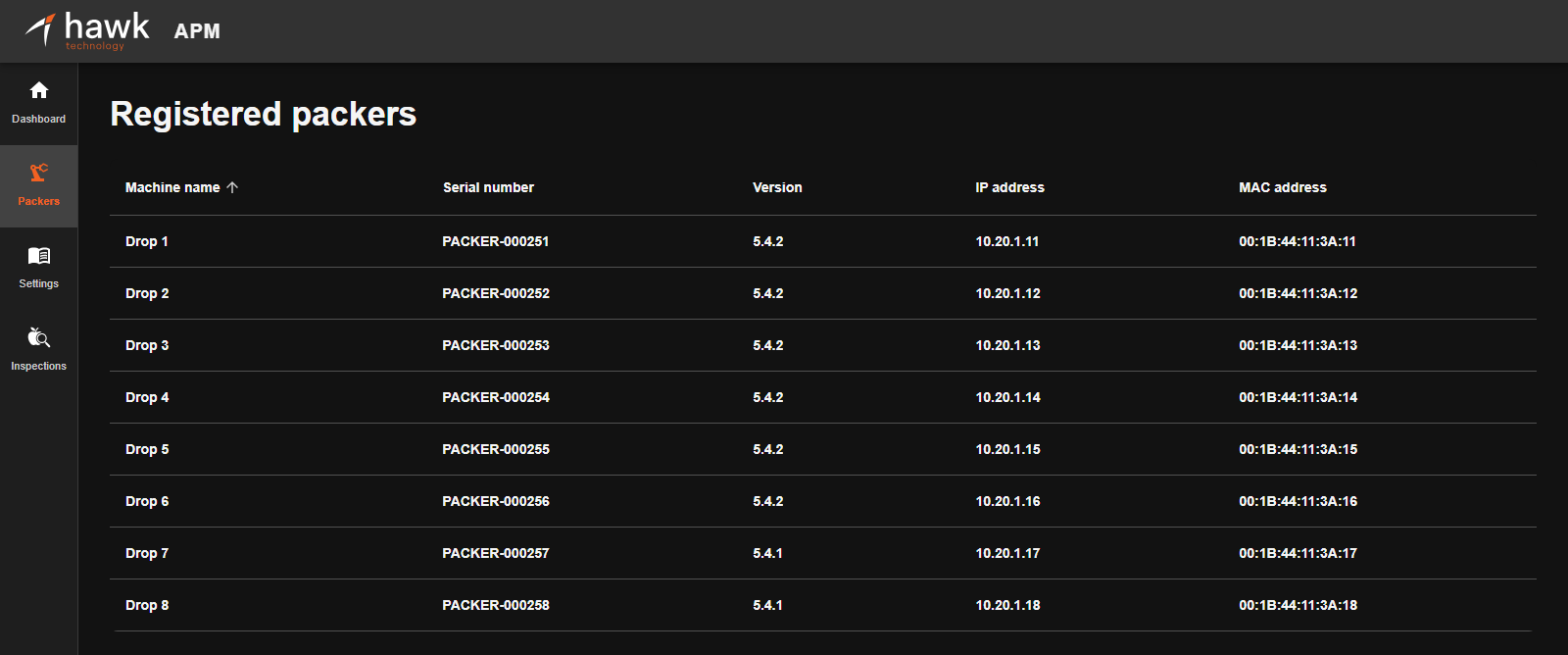
Figure — Packers page showing registered packers
- Machine name: The configured name of the RAP.
- Serial number: The RAP serial number.
- Version: The software version currently running on the RAP.
- IP address: The RAP's network IP address.
- MAC address: The RAP's network MAC address.
¶ Settings Page
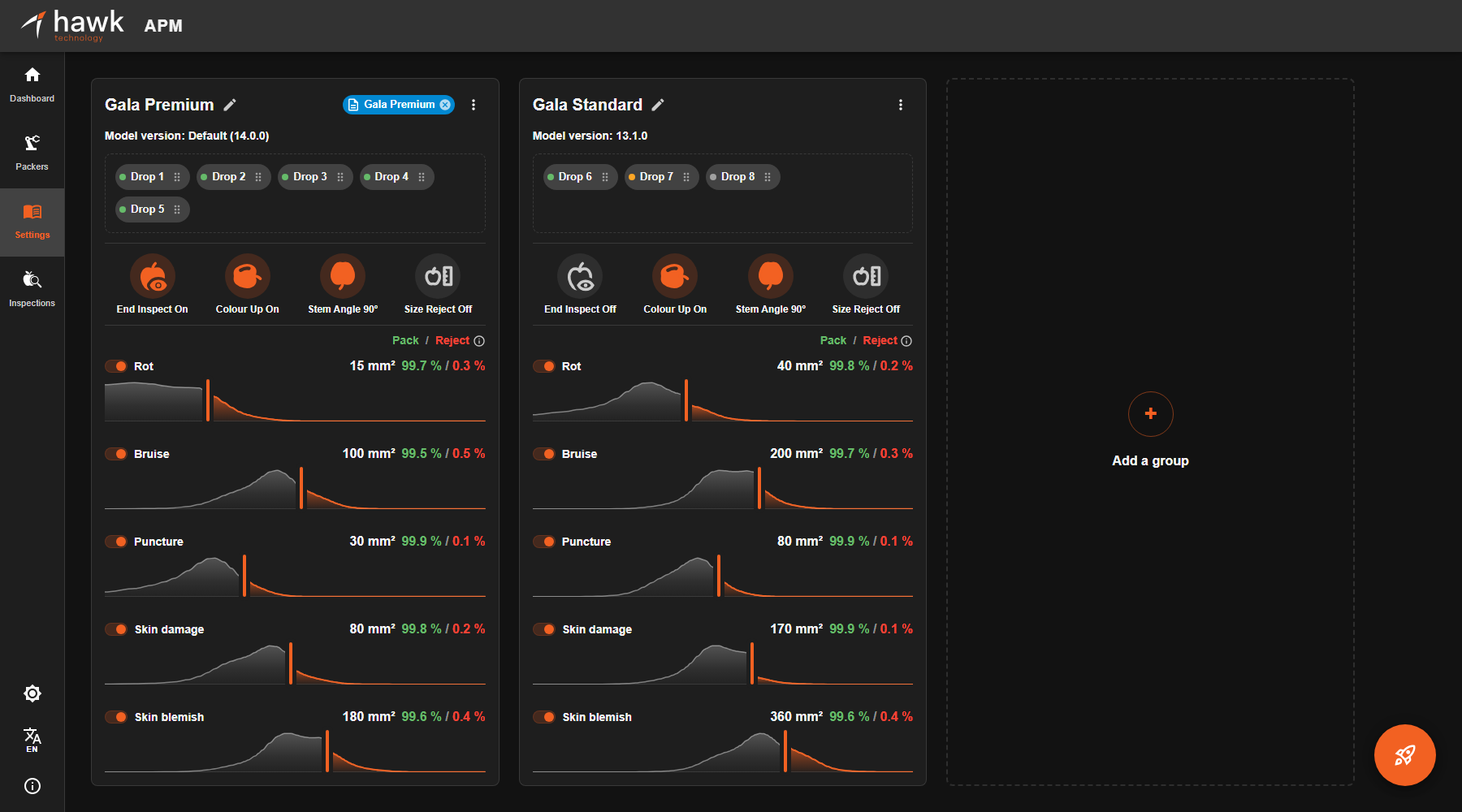
RAP settings are configured on the Settings page using outlet groups. Outlets are gathered into groups, each group holds one set of settings, and every RAP in the group runs those settings. Defect reject thresholds are part of each group's settings, so there is no longer a separate Rule Sets page.
¶ Release Notes
See Release Notes for what changed in each release of the machine software.