The packer is run from the touch screen at the front of the machine. This page covers everything an operator can do there. For faults and warnings shown on the screen, see Notifications; for safety, cleaning and maintenance, see the RAP manual.
¶ The operator screen
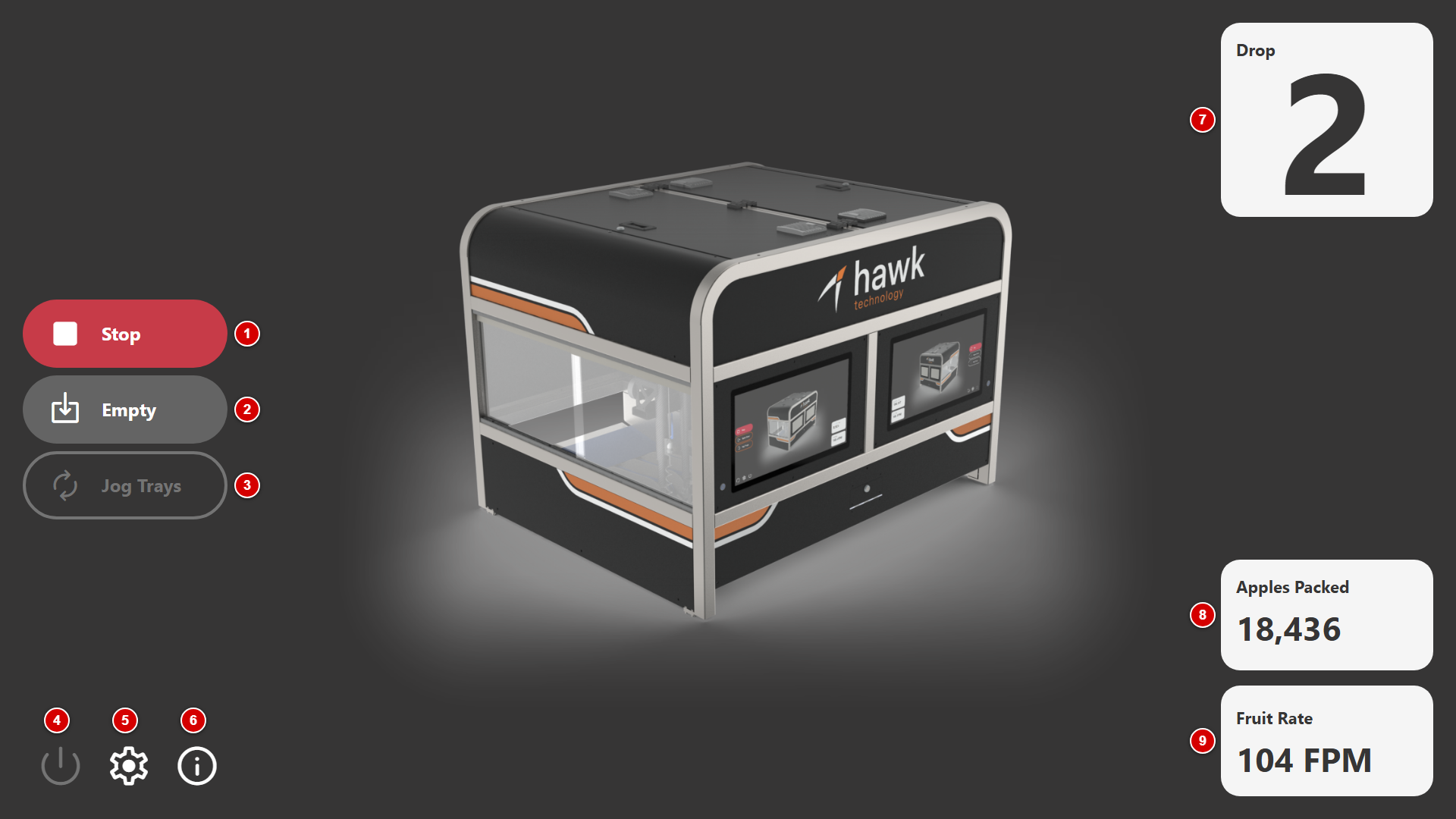
Figure 1 — The operator screen while packing
- Start / Stop – Starts the machine packing fruit. While the machine is running the button turns red and reads Stop.
- Empty – Packs out the fruit already in the machine and on the infeed, at the end of a run or shift. See Emptying the machine.
- Jog Trays – Runs the tray conveyor while held, for a tray change. Only available while the machine is stopped. See Jogging the trays.
- Shutdown – Shuts down the packer's PC. See Shutting down.
- Settings – Opens the settings. See Settings.
- Info – Shows the machine's details and its language. See Machine information.
- Drop – The lane this machine packs, as set up for your site.
- Apples Packed – The number of apples the machine has packed.
- Fruit Rate – Fruit per minute through the machine (FPM), packed and rejected together. Tap it to see the rate over time; see Fruit rate chart.
¶ When a button is unavailable
A button that cannot be used right now is greyed out. Tapping it shows why, for example Close door to start machine or Stop machine to jog conveyor.
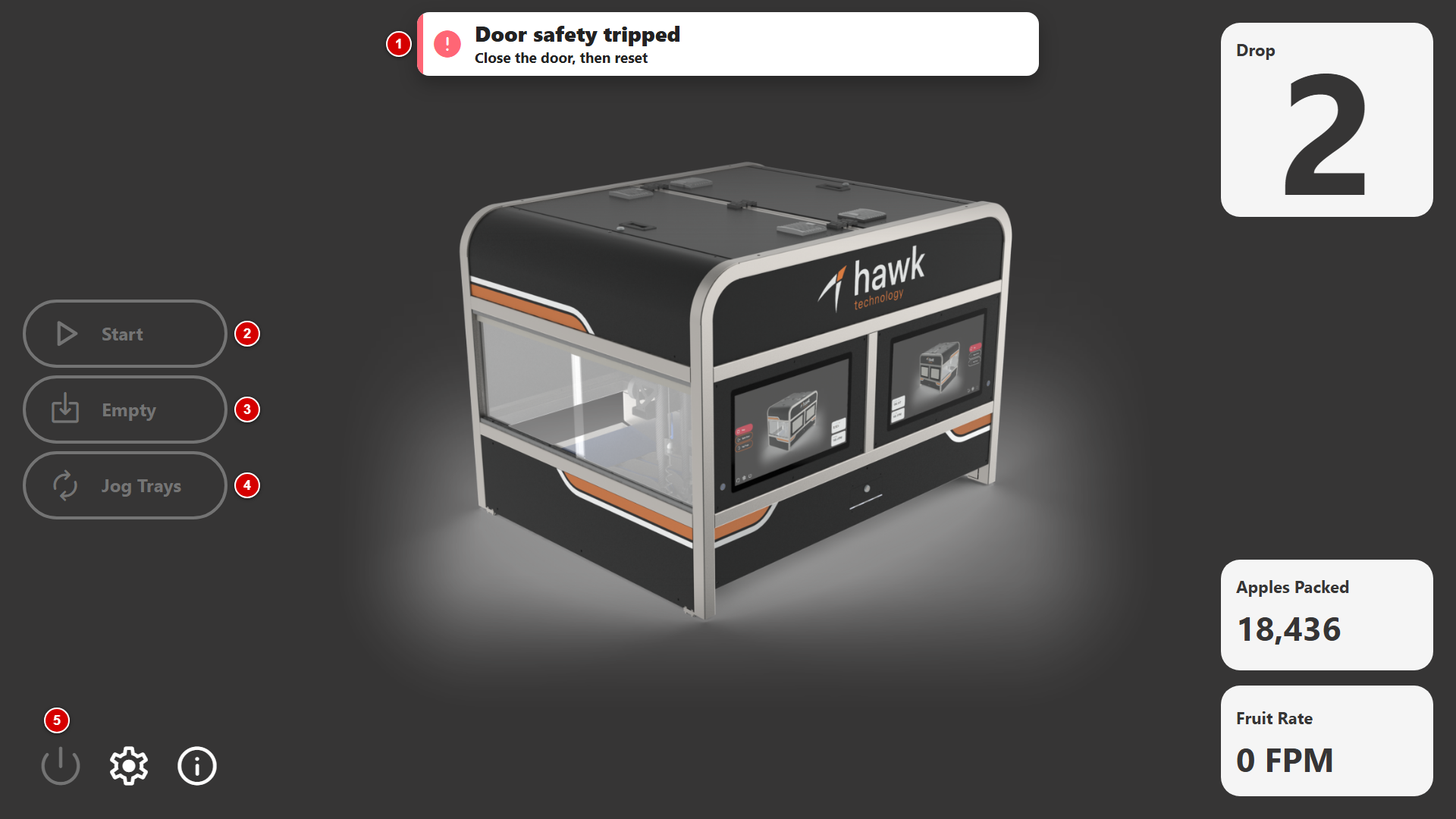
Figure 2 — The door is open: the machine cannot start
- Alarm banner – What is stopping the machine and what to do about it. Tap it to list every active alarm. See Notifications.
- Start is unavailable until the door is closed and the safety circuit is reset.
- Empty is unavailable for the same reason.
- Jog Trays is unavailable while the door is open or the machine is running.
- Shutdown is unavailable while the door is open or the machine is running.
¶ Emptying the machine
Tap Empty and confirm. The machine packs out the fruit inside it and on the infeed, and the button reads Emptying until it has finished. Tap Emptying to stop early.
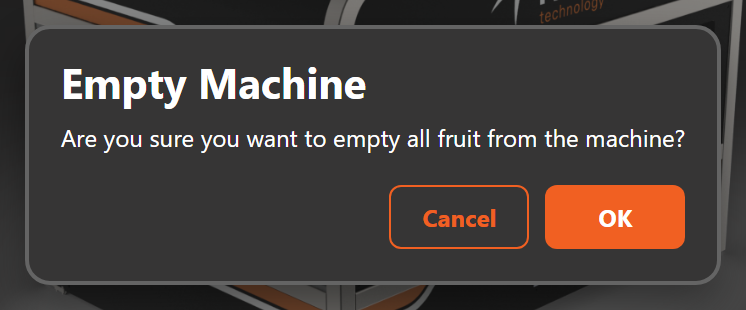
Figure 3 — Confirming Empty
¶ Jogging the trays
With the machine stopped and the door closed, press and hold Jog Trays to run the tray conveyor; it stops when you let go. To keep it running without holding, slide your finger onto the lock that appears beside the button and let go there: the button turns orange and reads Jog Locked. Tap it again to stop the conveyor.
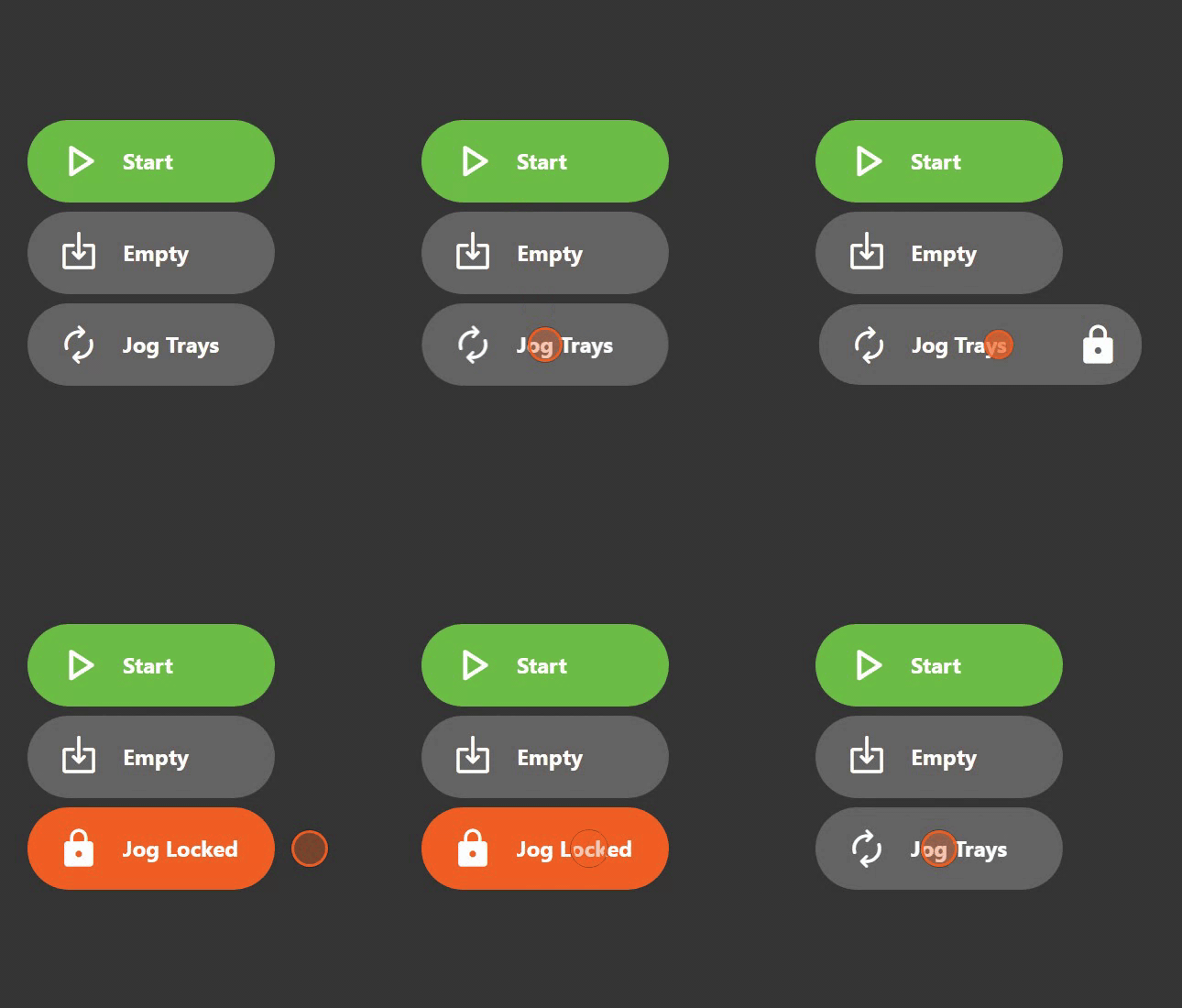
Figure 4 — Locking and unlocking the tray jog
¶ Fruit rate chart
Tap the Fruit Rate card to swap the machine picture for a chart of the fruit rate over time: fruit packed (green, left axis) and fruit rejected (red, right axis), in fruit per minute.
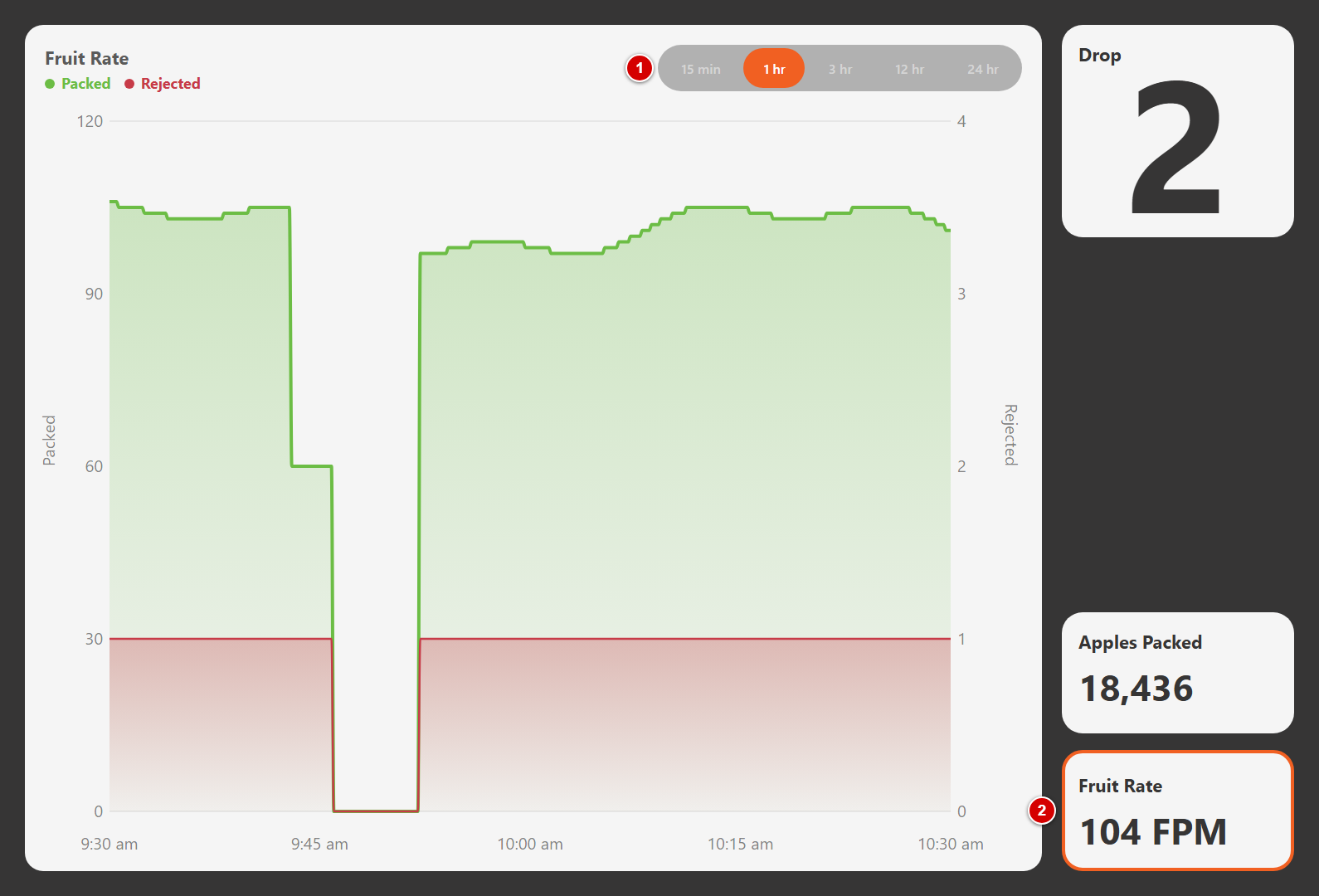
Figure 5 — The fruit rate over the last hour
- Range – How far back the chart goes: 15 minutes, 1, 3, 12 or 24 hours.
- Fruit Rate – Tap the card again, or any empty part of the screen, to go back to the machine picture.
¶ TOMRA sizer cards
At sites where the packer is linked to a TOMRA sizer, the cards on the right also show what the sizer says this outlet is packing: Variety, Product, Pack and Special Instructions. Which cards appear is set up for your site. If the sizer cannot be reached the card says so, for example Can't reach the TOMRA sizer.
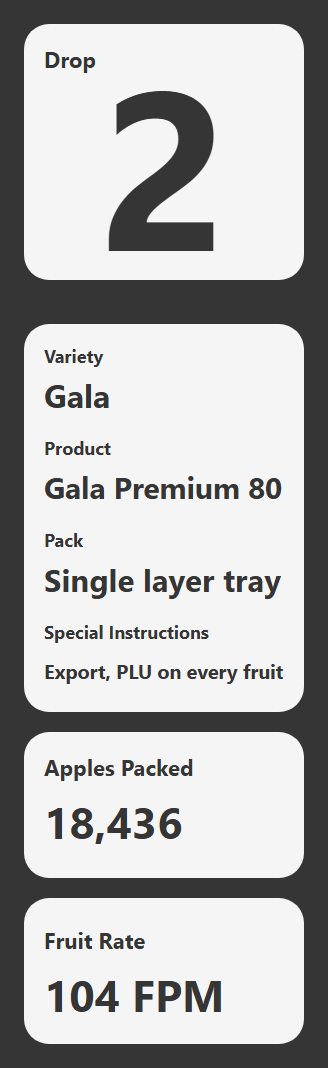
Figure 6 — The cards at a site with a TOMRA sizer
¶ Machine information
Tap Info to see the machine's details: the software and hardware version, the software's build date and the machine's name. Quote these when you contact Hawk Technology support.
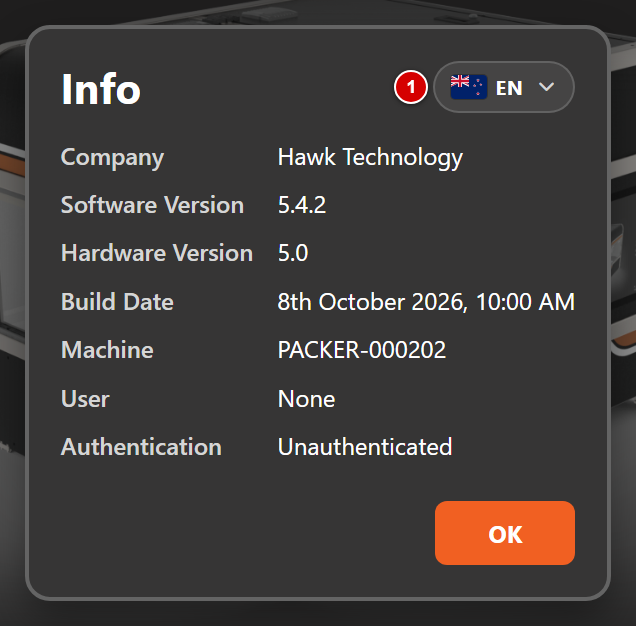
Figure 7 — The Info window
- Language – The language of the operator screen: English or Español. It is a machine setting, so it applies to everyone using this packer.
¶ Settings
Tap Settings to change how the machine packs. Changes apply straight away.
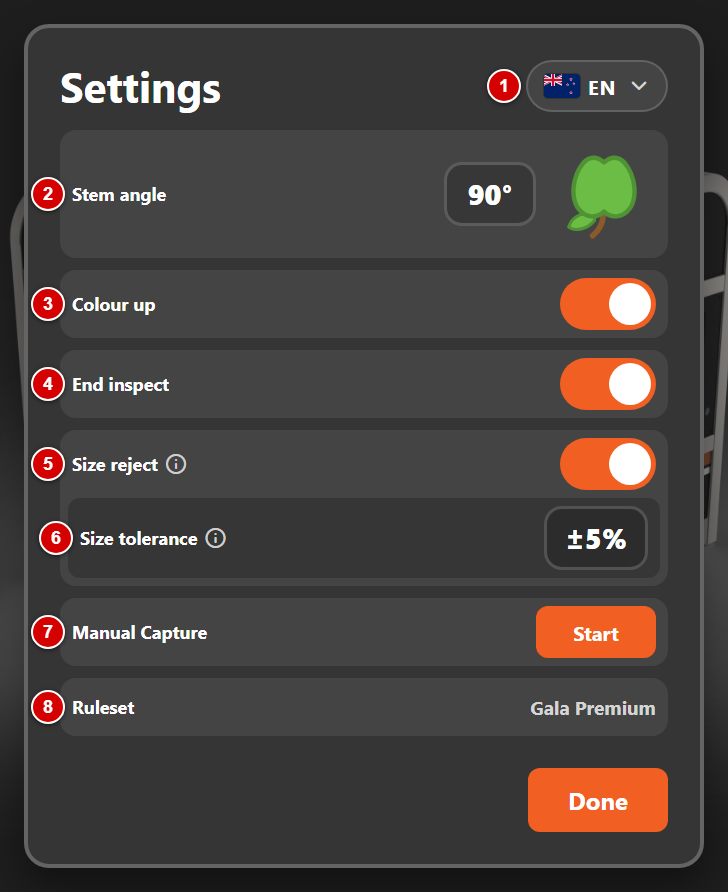
Figure 8 — Settings
- Language – The same language choice as in the Info window.
- Stem angle – The angle the fruit is placed at in the tray. Tap the apple to turn it 45° clockwise, or tap the number to type an angle.
- Colour up – Places each fruit with its blush side up.
- End inspect – Takes a clear image of the stem and calyx ends of each fruit during inspection on the rotation unit.
- Size reject – Rejects fruit whose diameter is too far from the machine's rolling average diameter. The average covers the last five minutes of fruit, and rejecting starts once 30 fruit have been measured. Turning this on starts a fresh average.
- Size tolerance – Shown while Size reject is on: how far above or below the average a fruit may be before it is rejected, from ±5 % to ±25 %. For example, ±15 % rejects fruit smaller than 85 % or larger than 115 % of the average.
- Manual Capture – Starts a manual capture session. The machine must be stopped. See Manual capture.
- Ruleset – The ruleset the machine is packing to, set from APM. Read only.
Tap Done to close the window.
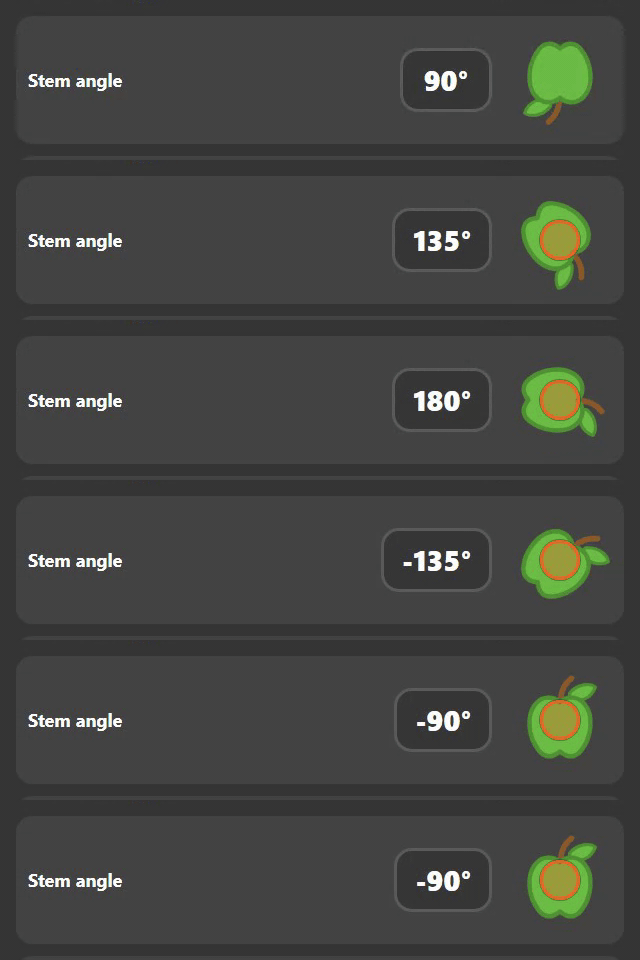
Figure 9 — Each tap turns the stem angle 45°
¶ Manual capture
Manual capture records every fruit fed through the machine, for example to collect images of a defect for Hawk Technology. The images appear on APM tagged with the session name, the fruit variety and manual-capture.
- Stop the machine.
- Open Settings and tap Start beside Manual Capture.
- Enter a Session name and the Fruit variety, and choose a Mode: Pack packs the fruit as usual, Reject sends every captured fruit to the reject conveyor.
- Tap Start, then feed the fruit through the machine.
- Tap Stop when you have finished.
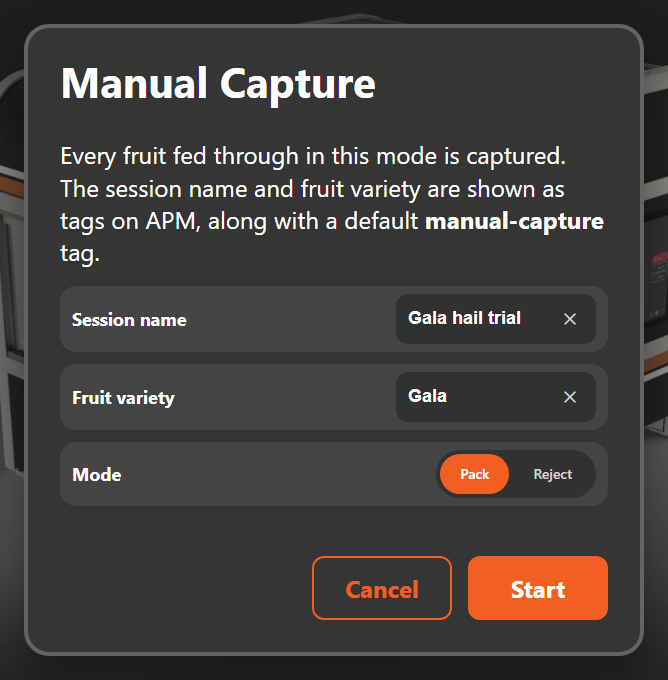
Figure 10 — Starting a manual capture session
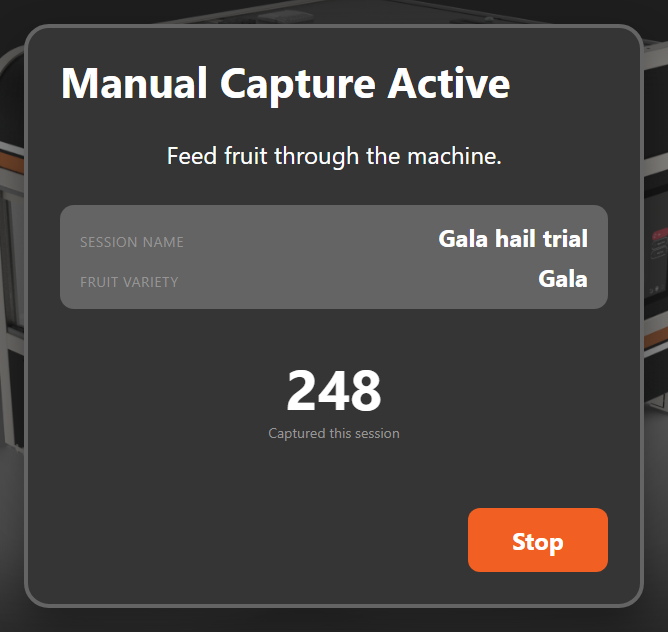
Figure 11 — The session counts the fruit it has captured
¶ Shutting down
Tap Shutdown and confirm to shut down the packer's PC, at the end of the day or before isolating the machine. The machine must be stopped and its door closed.
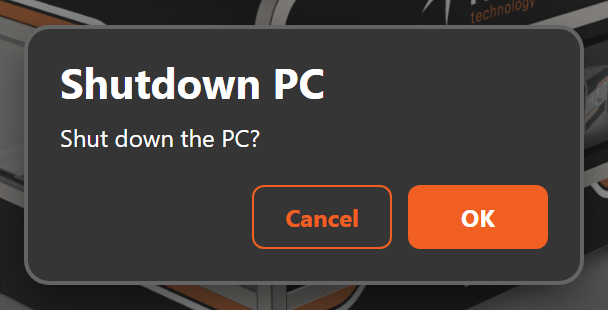
Figure 12 — Confirming shutdown